Risk-assessment tutorial (3/7): the wizard
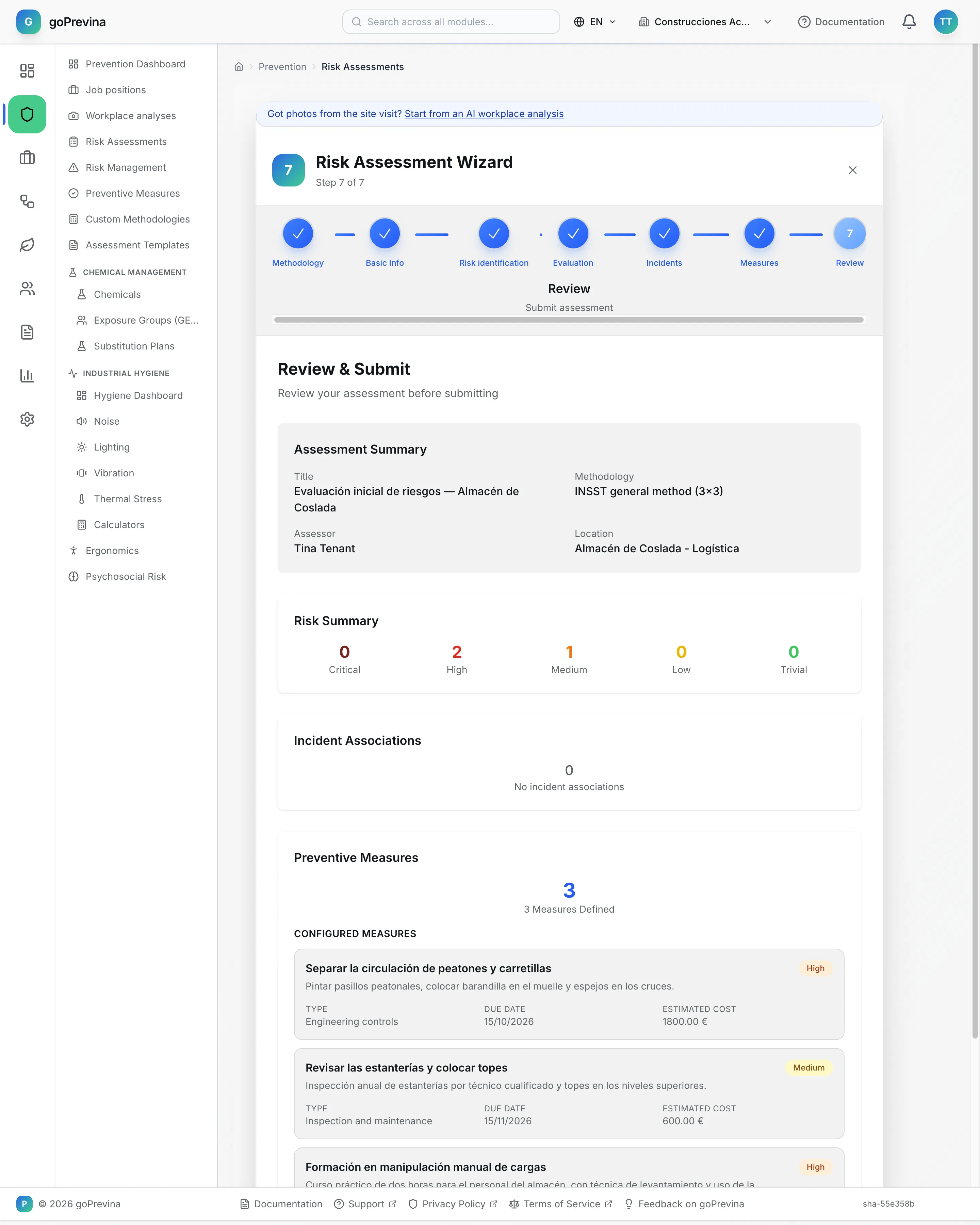
The wizard creates a complete assessment in seven steps: methodology, basic information, risks, scoring, incidents, measures and review. In this chapter Acme assesses its Coslada warehouse.
1. Getting started
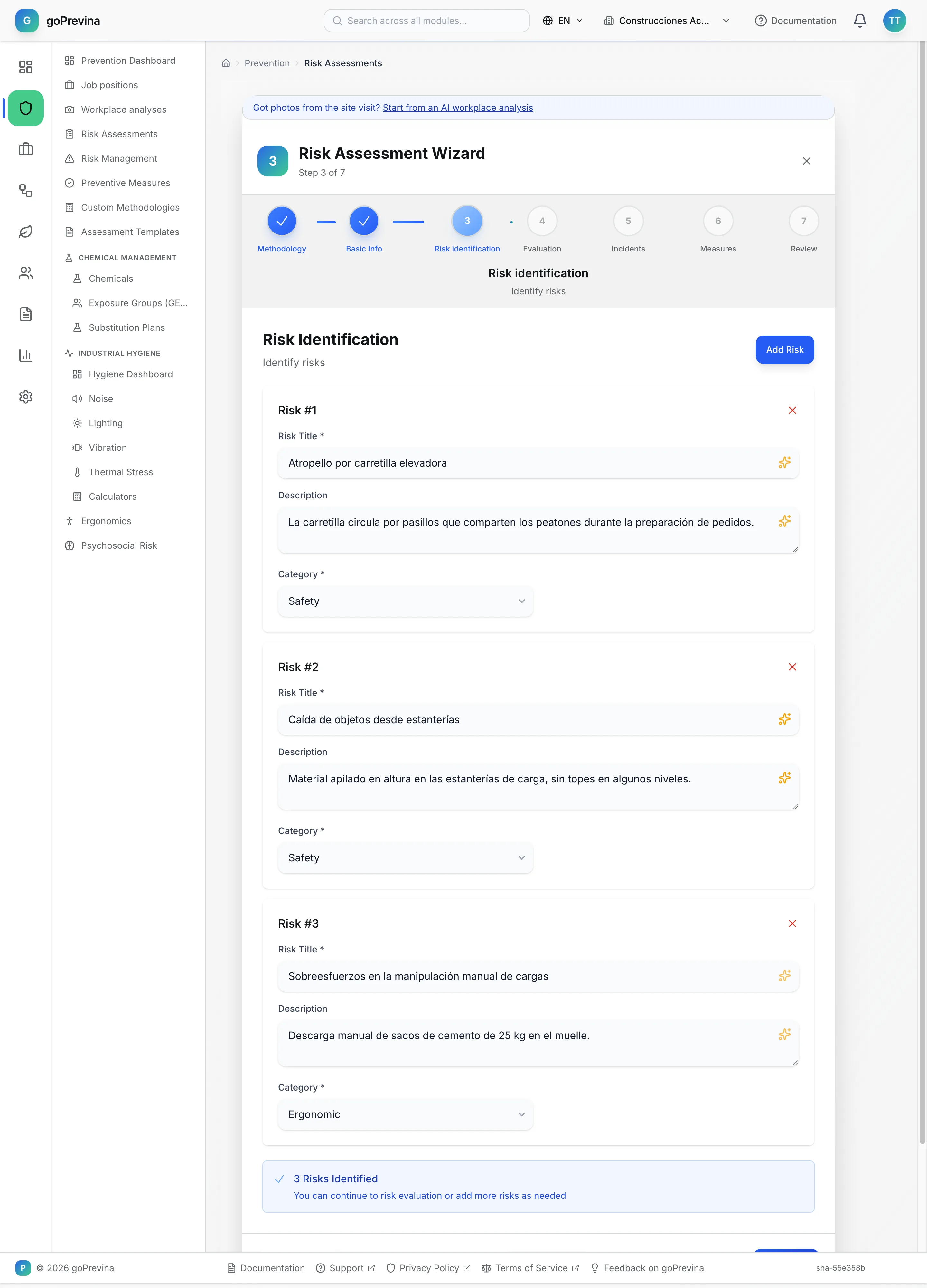
In «Prevention» → “Risk Assessments”, press “Create Risk Assessment”. If there are none yet, the list says so and explains why they are mandatory.
You can save at any time with “Save Draft”; if you close the browser halfway, the wizard recovers what you had the next time you open it in that browser.
2. Basic information
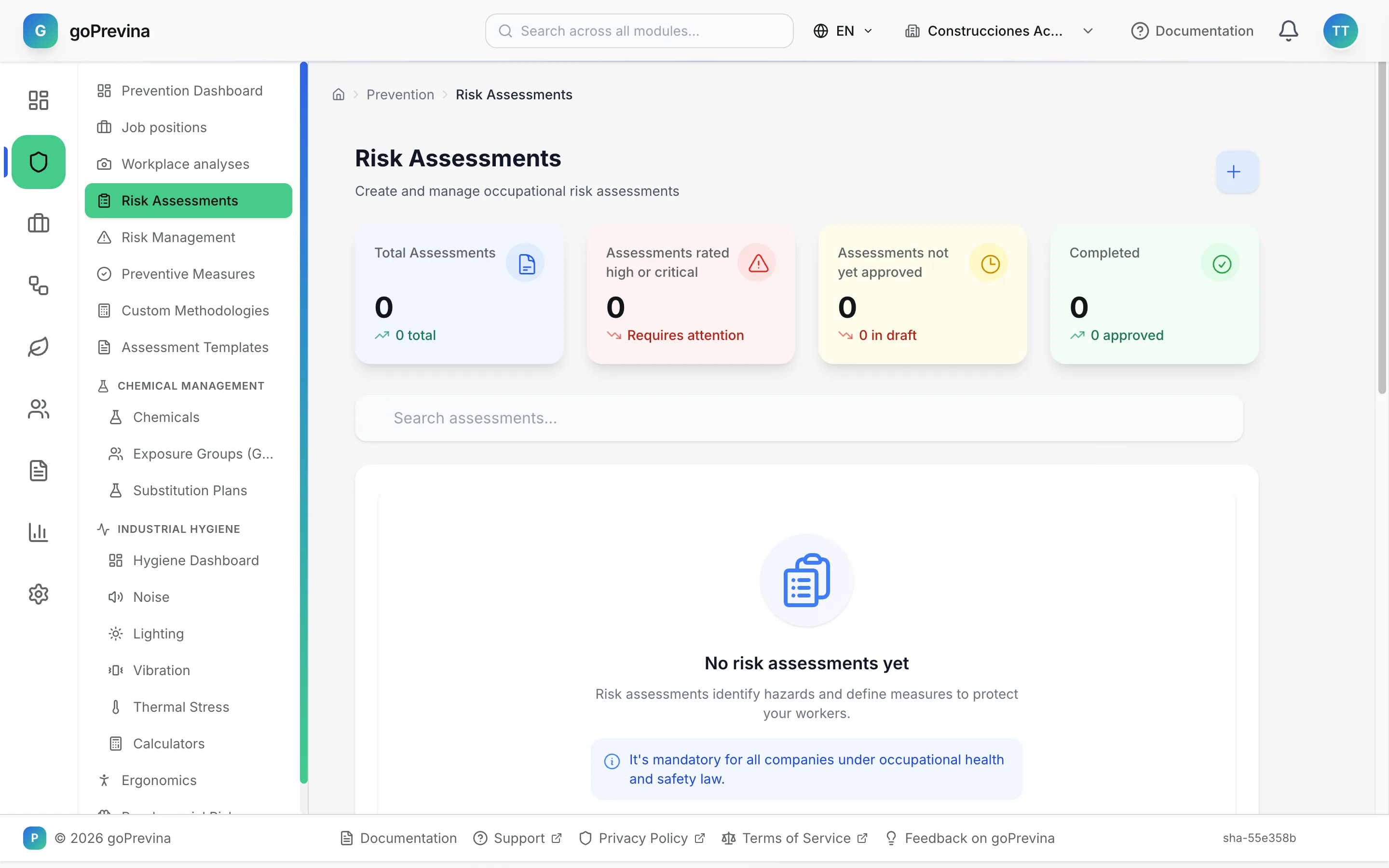
Choose the “Workplace center” and the “Department” (required) and, optionally, the area. If one is missing, create it from here with “New workplace center” or “New department”. Write the “Assessment Title” (3 to 255 characters), a description, the assessor and the “Due Date”.
3. Identifying the risks
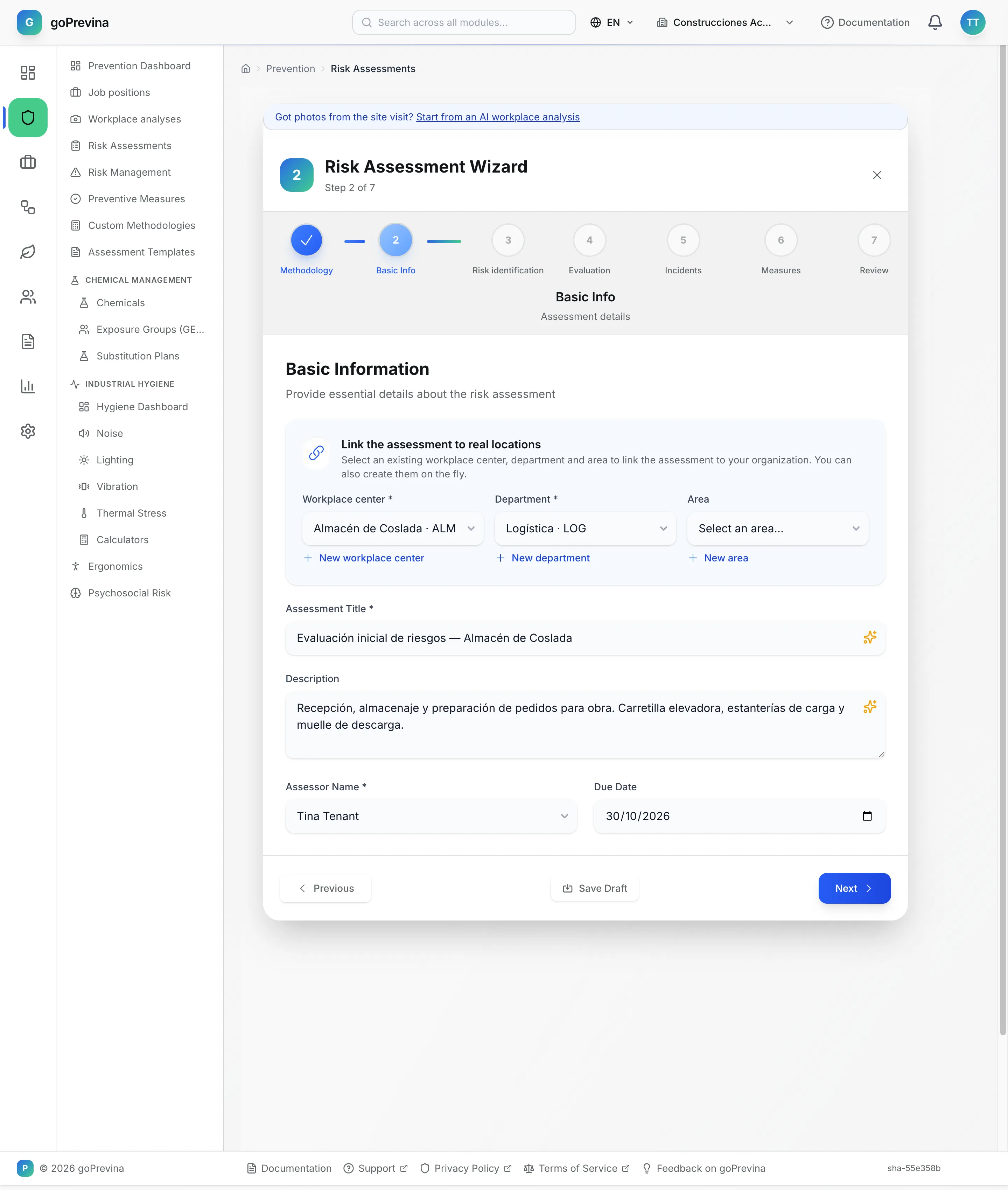
Press “Add First Risk” and write the “Risk Title”, a description and the “Category”. As you type, the wizard suggests risks that already exist in the company. Add as many as you need with “Add Risk”.
4. Scoring each risk
For each risk choose the values of the methodology's factors; with INSST, “Probability” and “Severity”. The score and the level appear on the right as soon as you fill in both. You cannot go on until every risk is scored.
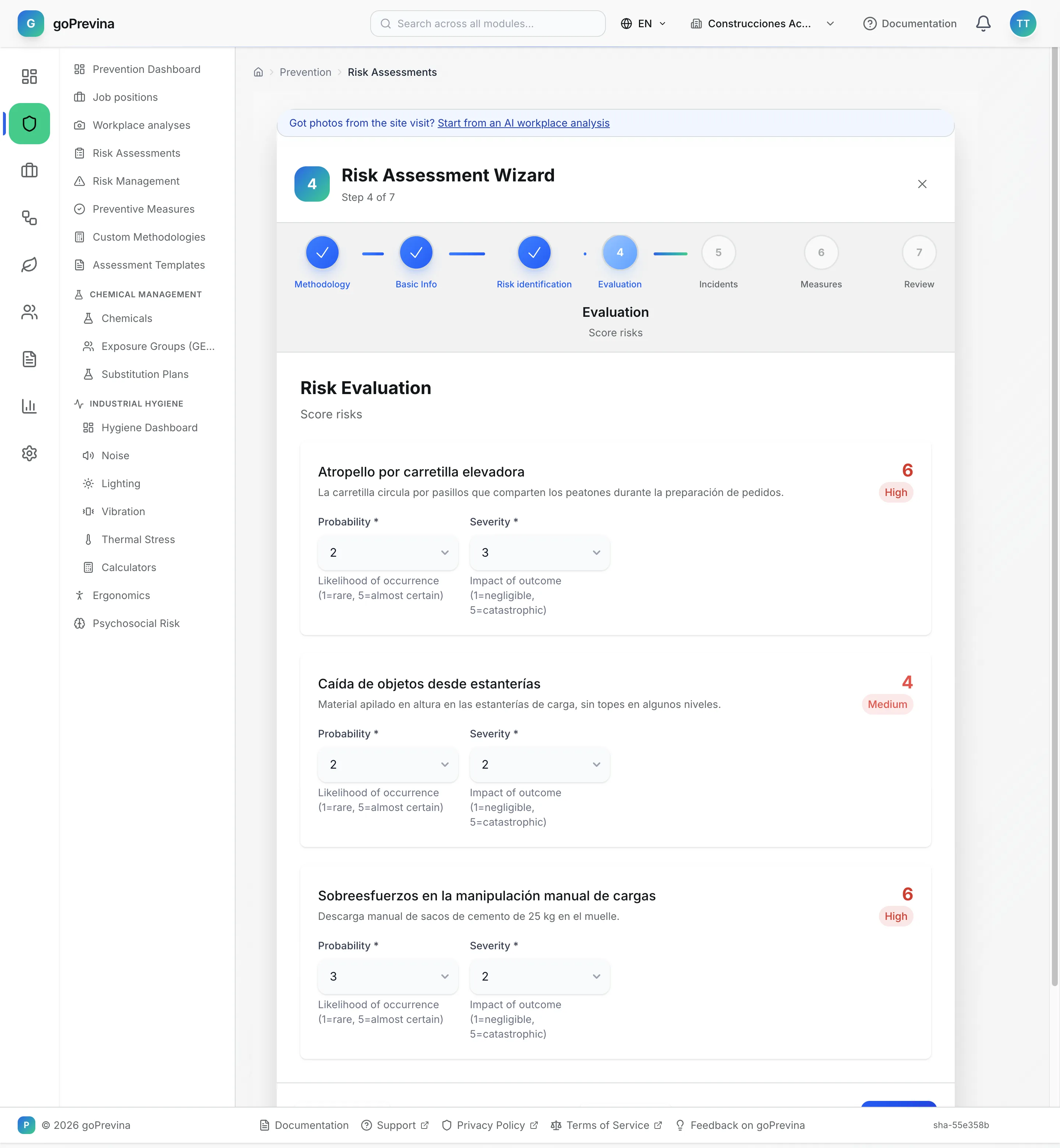
5. Related incidents
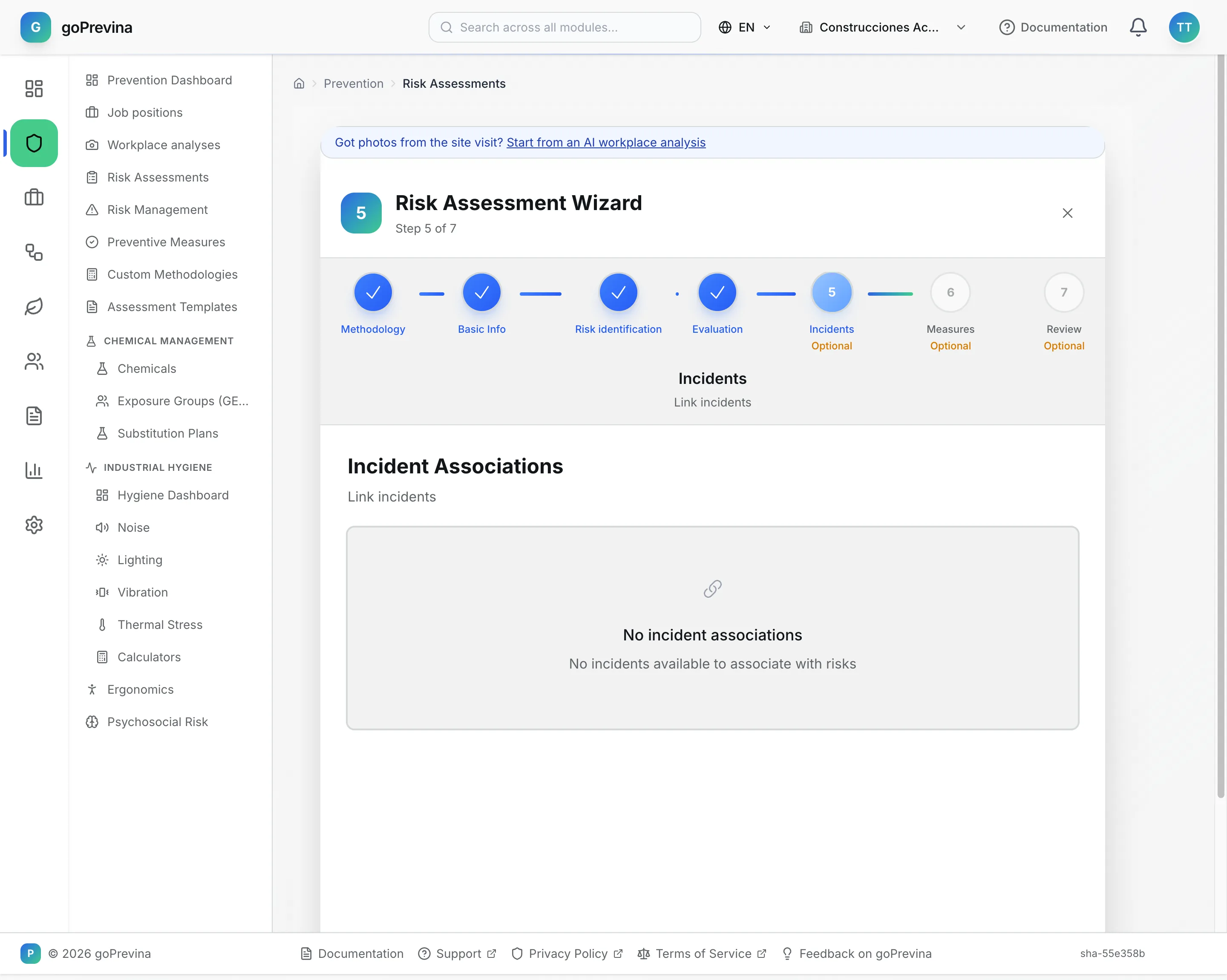
This step is optional: link the assessment to incidents already recorded (“Associate with Incident”), for example when you reassess a position after an accident.
6. Preventive measures
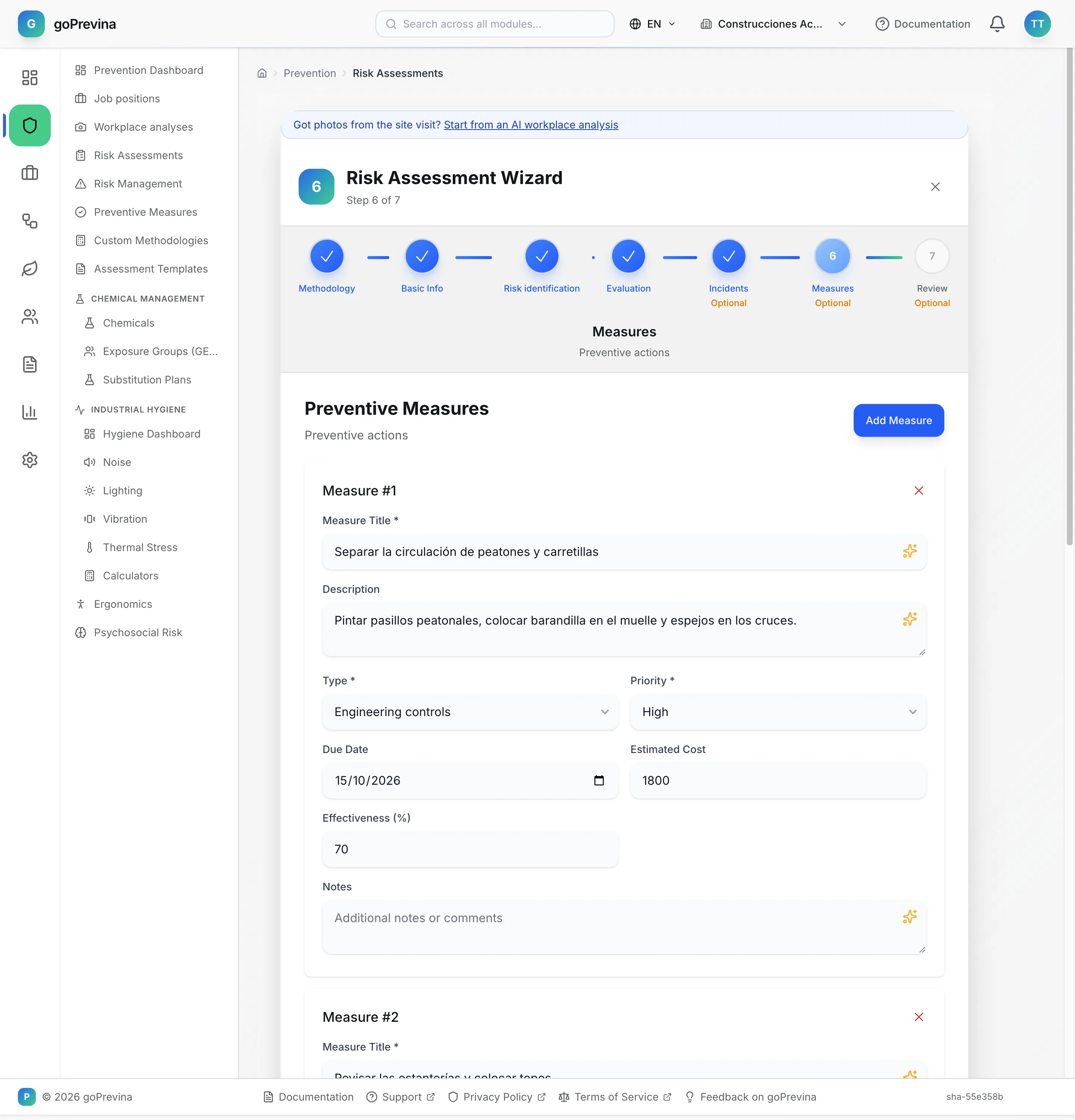
Press “Add First Measure”. Each measure has a title, a “Type” (elimination, substitution, engineering controls, administrative controls, personal protective equipment, training, inspection and maintenance), a “Priority” and a “Due Date”; estimated cost, effectiveness and notes are optional.
7. Review and complete
The last step summarises the assessment, counts the risks by level and lists the measures. Press “Complete Assessment”: the assessment is created as “Draft” with its risks and measures, and you return to the list.