Risk-assessment tutorial (7/7): review, approval and after
An assessment goes through “Draft”, “In Review” and “Approved”, and later it can expire, be renewed or be archived. This chapter closes the tutorial with those steps, exporting, Nora and offline use.
1. The draft
A draft assessment can be edited and deleted. Its page shows the description, the risk level, the details, the timeline, the risks with their scores, the documents and the related items.
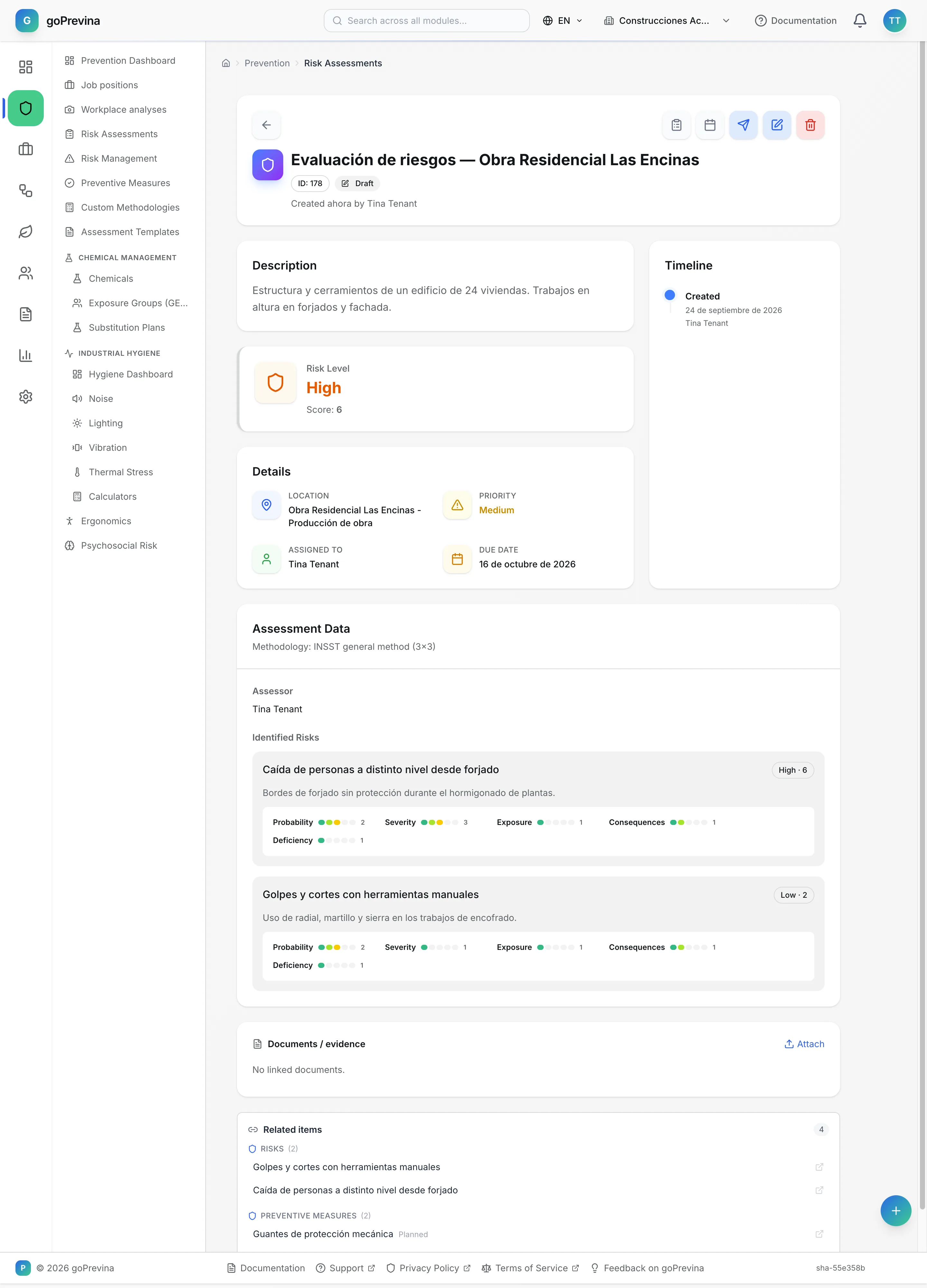
2. Submitting for review and approving
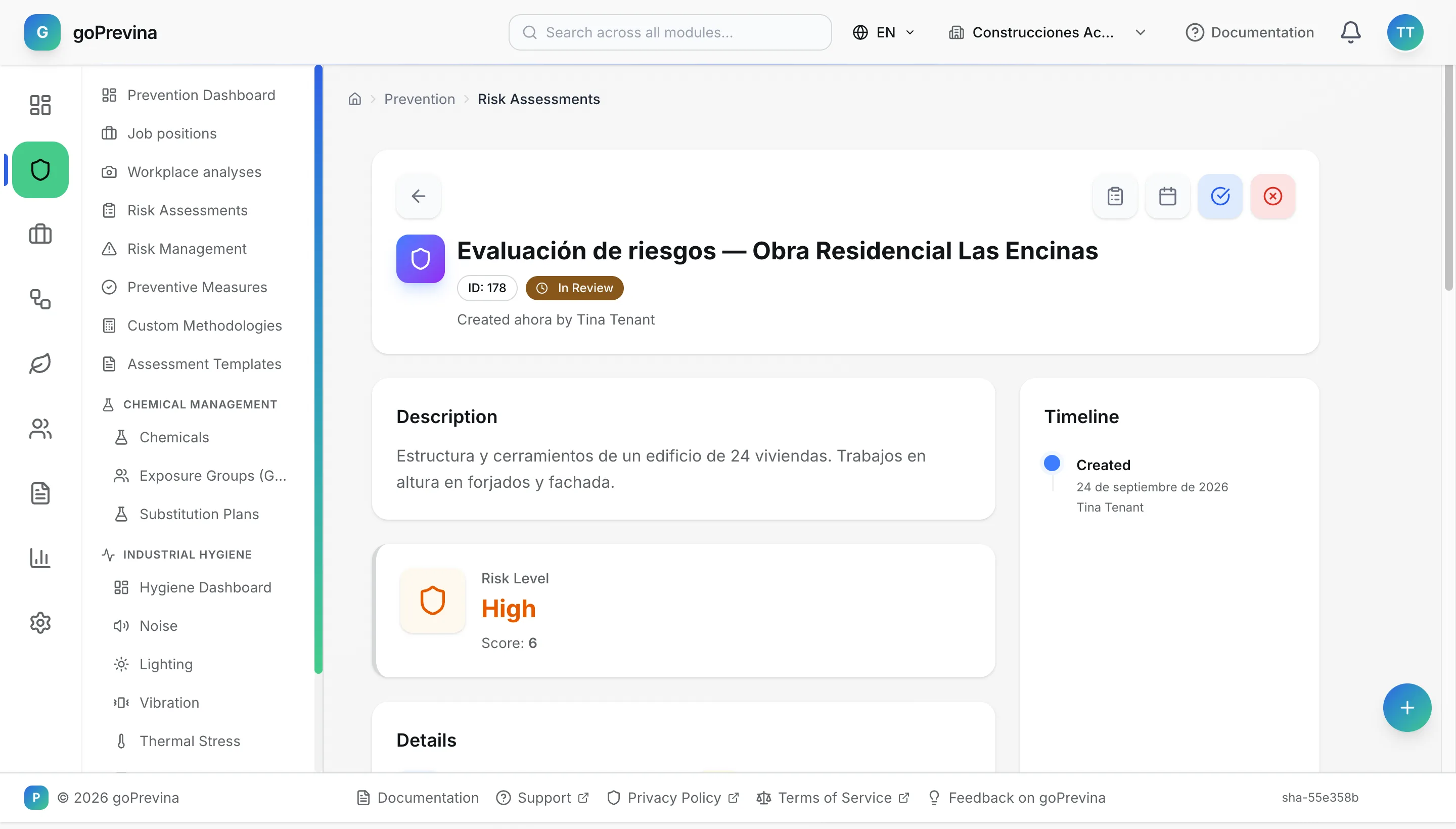
“Submit for review” can be pressed by whoever created the assessment and by the assigned person. In review, an administrator presses “Approve” or “Reject”; rejecting asks for a reason and the assessment goes back to draft.
3. After approval
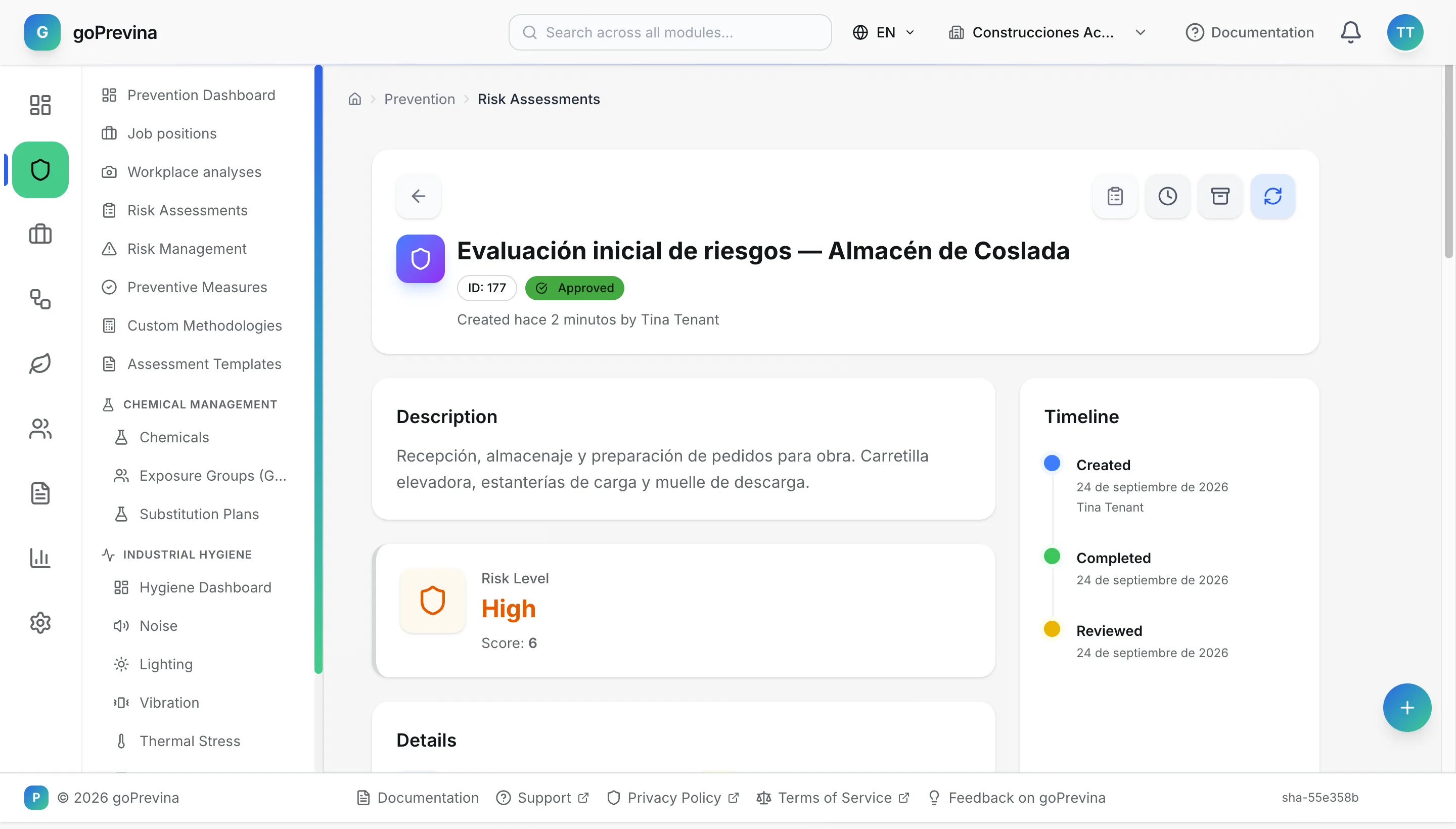
Once approved, the assessment is no longer edited. From its page you can “Mark expired”, “Archive” or “Renew”. “Renew” offers three options: “Create a new version” (a new draft with the same risks and measures, linked to the previous version), “Reopen this assessment” (it goes back to draft) and “Extend validity” (moves the date a number of months; 12 by default). An expired or archived assessment can be reopened.
4. List, filters and export
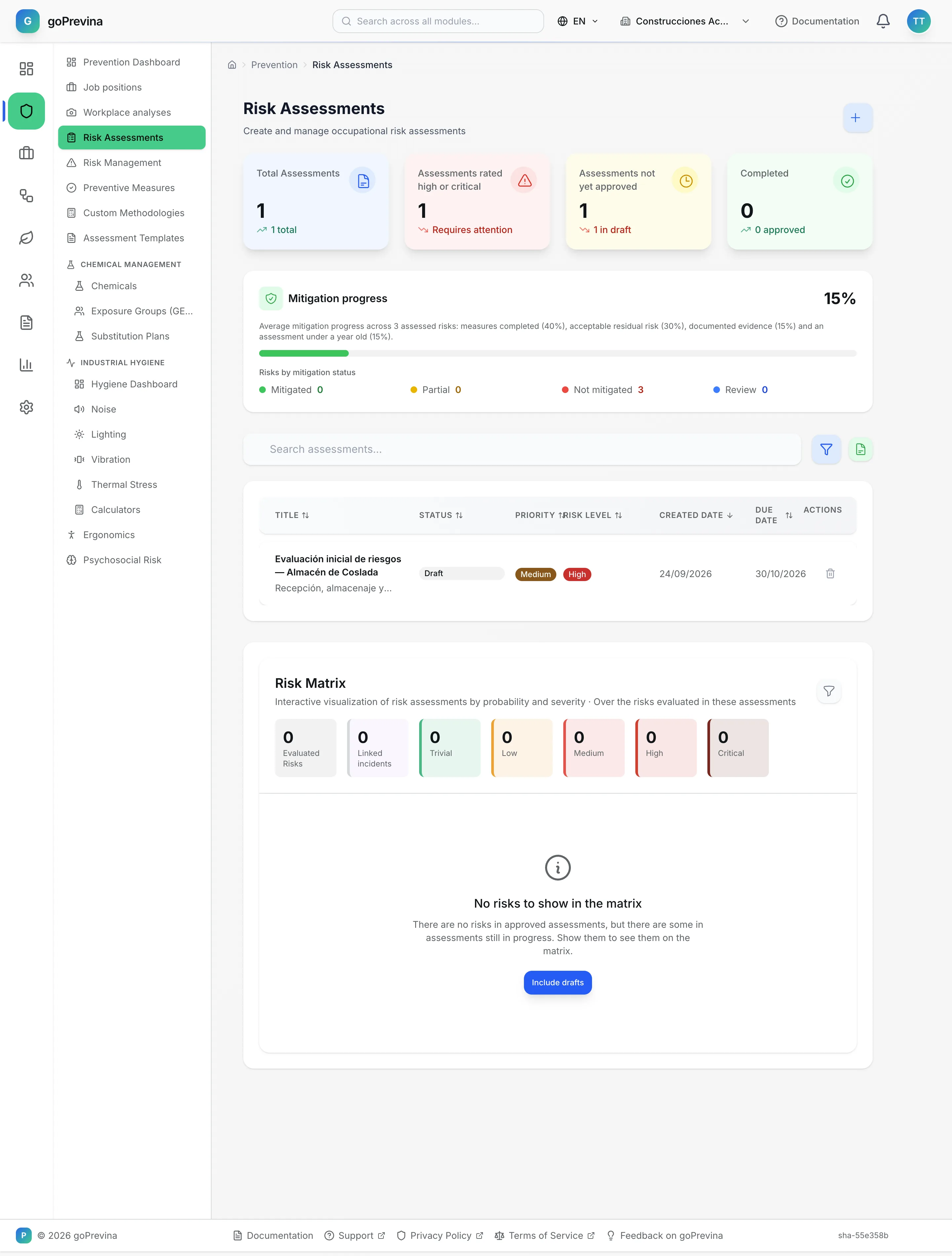
The list of assessments shows indicators, the risk matrix and one card per assessment. With data, “Filters” (status, priority, level, methodology and mitigation) and “Export to Excel” appear.
5. Nora and offline use
Nora knows your assessments: ask it for a summary, the pending measures or which high risks have no measures. It can also create or change records, but it first shows you what it is going to do and does it only if you confirm. Always check its answer on the record's page before acting.
Assessments are not created offline. Without a connection you can view the ones you had already opened, and the creation wizard keeps the draft in the browser.