Introduction to goPrevina
goPrevina brings a company's occupational health and safety into one application: risk assessments and preventive measures, inspections and incidents, training, PPE, health surveillance, contractors and the environment. This guide explains how it is organised, the concepts it uses and what you need before you start.
1. The areas of the menu
The sidebar groups the modules by area. Click each icon to open its menu.
«Prevention»: “Prevention Dashboard”, “Job positions”, “Workplace analyses”, “Risk Assessments”, “Risk Management”, “Preventive Measures”, “Chemical Management”, “Industrial Hygiene”, “Ergonomics” and “Psychosocial Risk”.
«Operations»: “Inspections”, “Incidents”, “Work Permits”, “LOTO Lockouts”, “Equipment”, “CAE Coordination” with contractors and “Construction & Works”.
«Quality & Improvement» and «Environment»: non-conformities, actions, audits, emissions, waste, energy, water and environmental compliance.
«People»: “Team”, “Workforce”, “Training”, “Health Surveillance” and “PPE”.
«Documents», «Reports» and «Administration» close the menu. «Administration» holds the company, the organisation, permissions, integrations and the subscription.
2. Key concepts
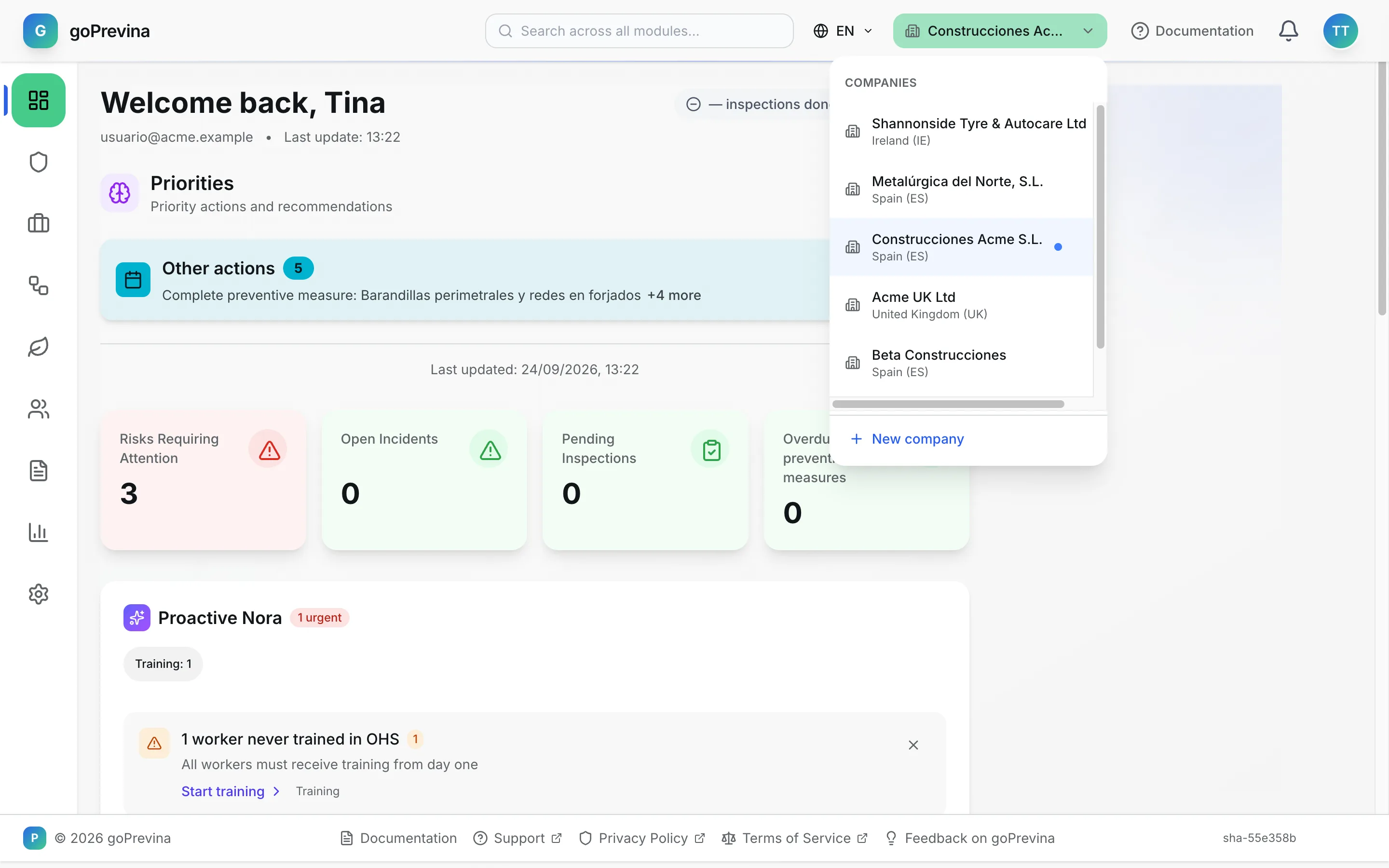
Company: each company in your account has its own data, kept apart from the others. The active company's name is at the top, in the header bar; click it to switch company. Account administrators create new companies there with “New company”.
Work centre: each physical location (offices, warehouse, construction site). Each centre contains departments and, inside them, areas. Assessments, inspections and reports are located and filtered by that structure.
Job position: what a person does (forklift operator, site foreman). Positions are assessed and assigned to the workforce.
Roles: “Viewer” reads, “Editor” records and changes data, “Administrator” also manages people and settings.
Nora: the application's AI assistant. It answers with the active company's data.
3. The screen
At the top you have the search across all modules, the language, the active company, «Documentation», notifications and your user menu (your initials).
On the left, the sidebar with the areas. On sign-in the «Dashboard» opens: priorities, upcoming deadlines and the main indicators. Each number on the dashboard opens the list with exactly those records.
4. Help, next to every screen
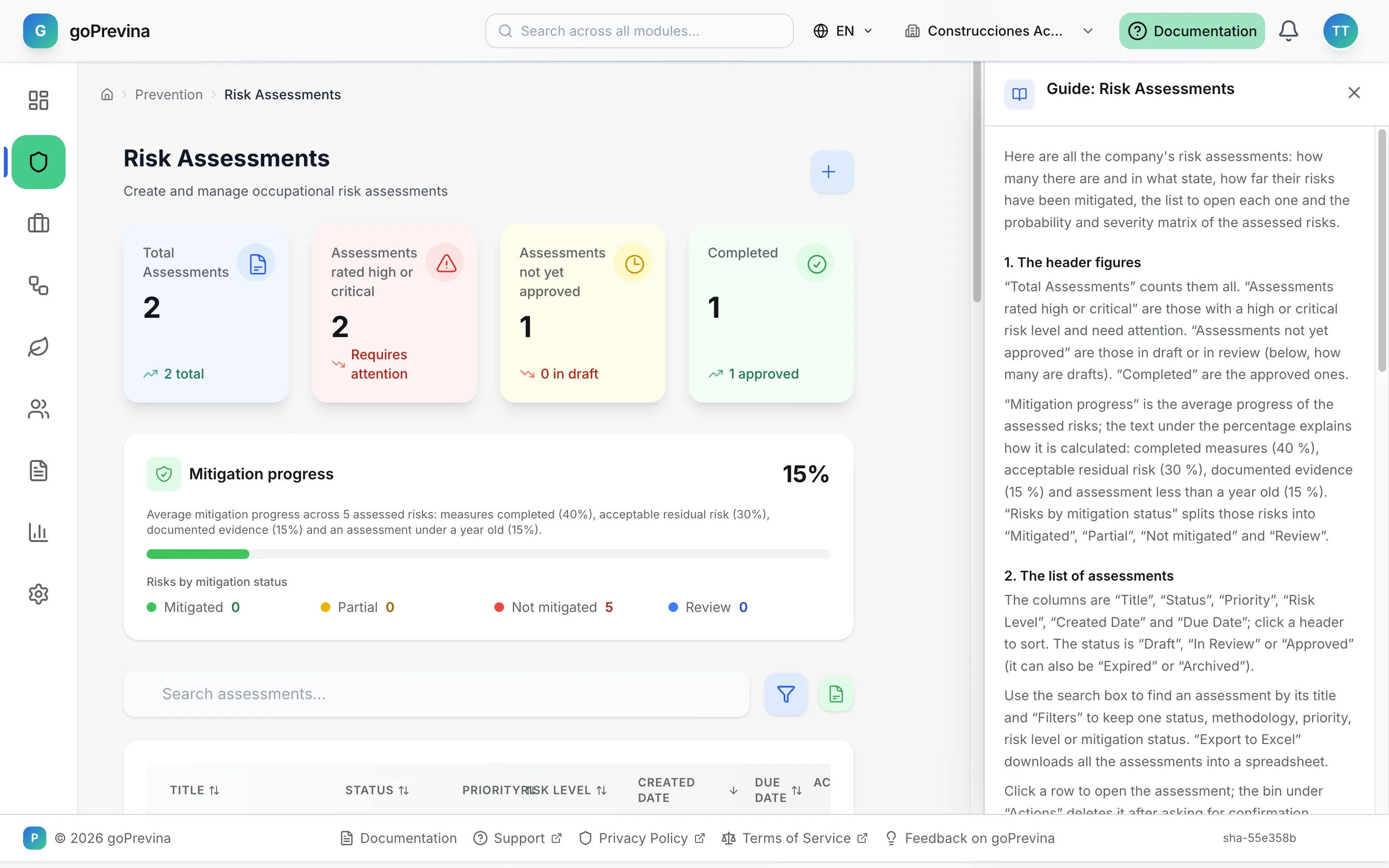
«Documentation», top right, opens the guide for the screen you are on, in a panel on the right, without leaving what you are doing. From that panel you can open the guide as a full page or see all guides.
The same index is under «Documentation» in the footer.
5. Nora, the assistant
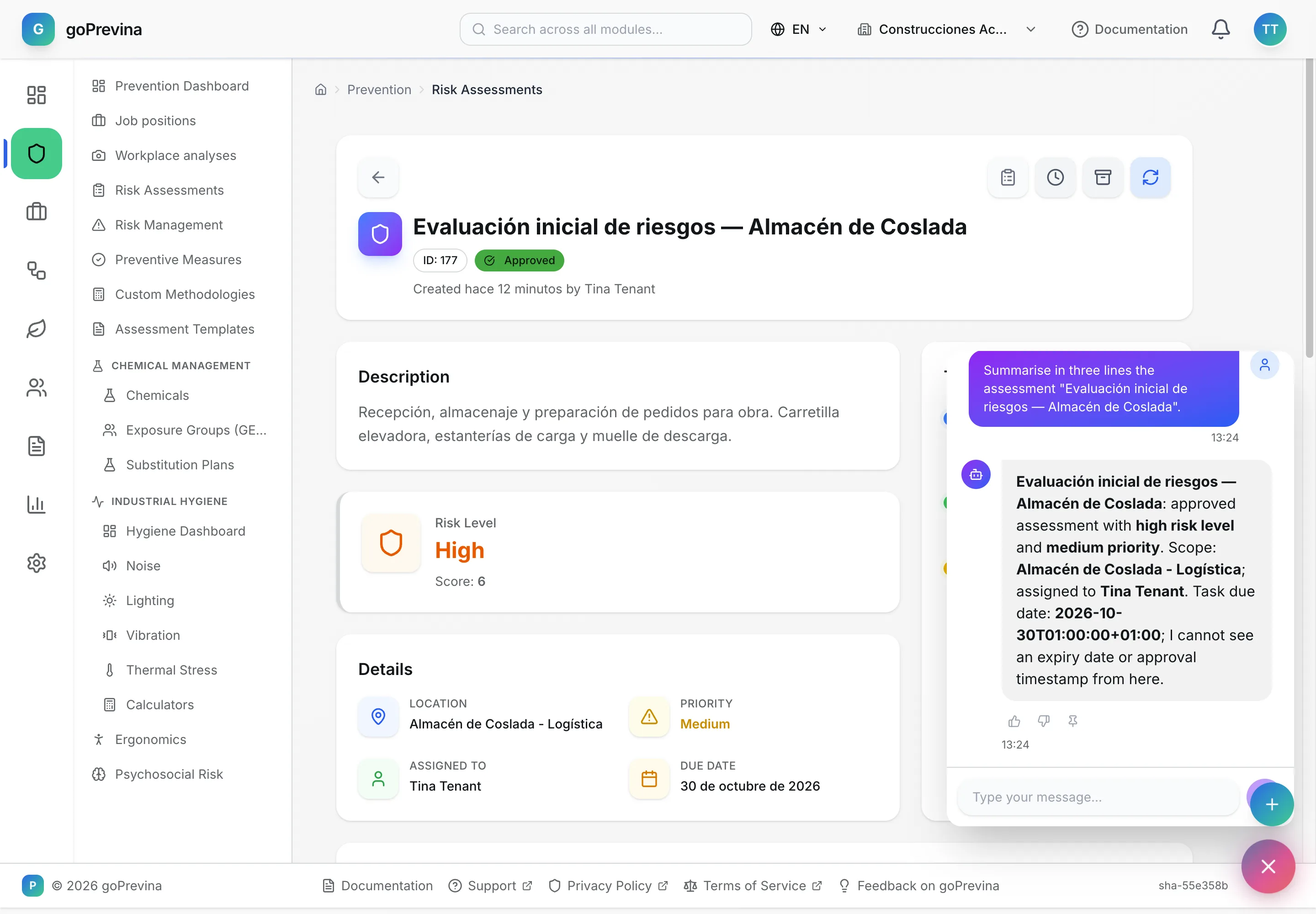
The round button at the bottom right opens Nora. Ask it in plain language about your data: which measures are due this month, how an assessment stands, who is missing mandatory training. Nora only sees the active company's data.
It can also create or change records: it first shows you what it is going to do, does it only if you confirm, and with your user's permissions. Always check what it answers before making a decision.
6. Requirements and ways to use it
All you need is an up-to-date browser (Chrome, Edge, Safari or Firefox). goPrevina can be installed as an app on a computer or a phone from the browser itself.
Offline, the application shows what you had already opened; inspections can be carried out without a connection and sync when it returns.
Everyone with an account has «My space» with their appointments, training, PPE and documents. Contractors sign in to their own portal. To connect other systems, the administrator has “API keys” and “Webhooks” under «Administration» → “System”.
7. What has to be set up by hand
Email: alerts, invitations and activation links only go out if the installation has a mail server (set up by whoever installs it). Without email, invitations are handed over by hand.
AI: Nora and the AI features need an AI service configured. The first user the installer creates administers the installation: from that account, “Settings” → “AI”, fill in endpoint, model, embeddings and key, and press “Test” before saving. Until then Nora says it is not available.
Alerts: in «Administration» → “Preferences” → “Notification preferences”, the “Company defaults” tab sets the channels for each alert; WhatsApp and Telegram need their integration under “Integrations”.
8. Support and backups
To get in touch use «Support», and to suggest improvements «Feedback on goPrevina», both in the footer. Contractors have their own guide in their portal (“Help”).
On an installation on your own servers, goPrevina does not make backups: the database, the uploaded documents and the secrets file (.env) must be copied, as docs/deployment/INSTALL.md explains. Agree who does it and run a test restore before loading real data.